
01 / 03
Marks stay editable
While you are in the editor every mark is a live object. Click one to move it, resize it, or delete it. Leave with unsaved markup and Mark asks first.
Screenshots for Mac
Mark is a small Mac app for screenshots. Grab or paste an image, it lands in a library on your Mac, and you can add arrows, boxes, text, and numbered steps before you copy or save it.
Built for macOS. Your screenshots stay on your Mac.
How it works
Press the capture hotkey to grab a region of the screen, paste with ⌘V, or drop an image on the library's paste box.
Every capture goes straight to the library and to your clipboard, with no popup and no save step.
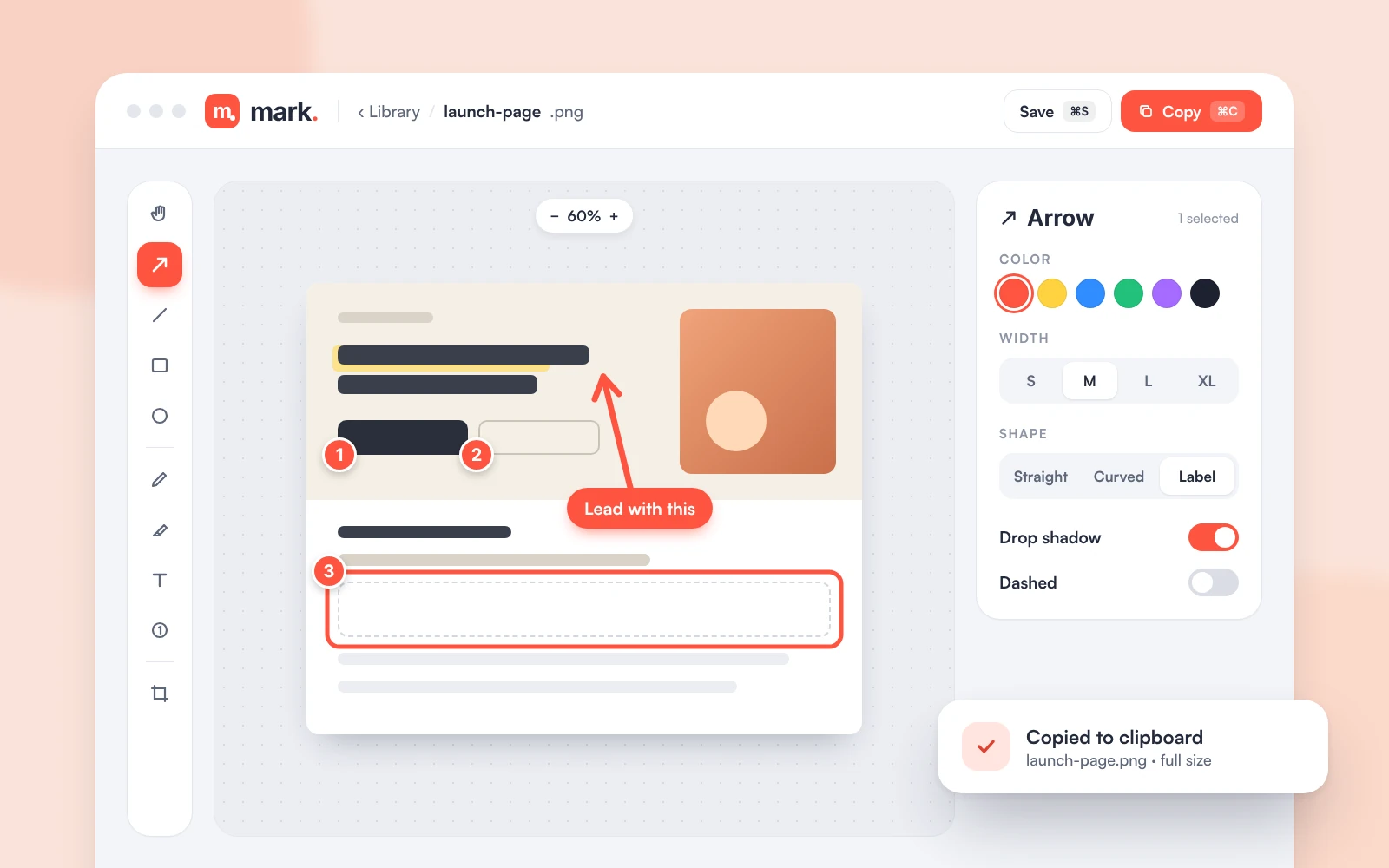
Click Annotate on any card and the editor opens with your tools down the left and their settings on the right.
Copy puts the marked-up image on the clipboard instantly. Save writes it back to the library. Both export at the screenshot's own size.
Tools
Straight arrows with an optional label on the tail that stays readable, plus plain lines that snap to 45° when you hold Shift.
Outlines with optional fill and corner style. Hold Shift for a perfect square or circle.
One consistent text style with an optional background, and click-to-drop 1, 2, 3 markers for walkthroughs.
Freehand drawing, a see-through highlighter, and check marks, crosses, and emoji when a word is too much.
01 / 03
While you are in the editor every mark is a live object. Click one to move it, resize it, or delete it. Leave with unsaved markup and Mark asks first.
02 / 03
Every tool keeps its last-used color, width, and options, even after you quit, so nothing snaps back to defaults.
03 / 03
Each tool has a single-letter hotkey, ⌘C copies, ⌘S saves, and [ and ] jump between recent captures in the filmstrip.
Library
macOS desktop
Mark lives in your menu bar with global hotkeys for capture and show/hide, so the next screenshot is always one keystroke away.